Start with one idea
Open the app and type a rough thought. Your 7-day trial needs no account or card.
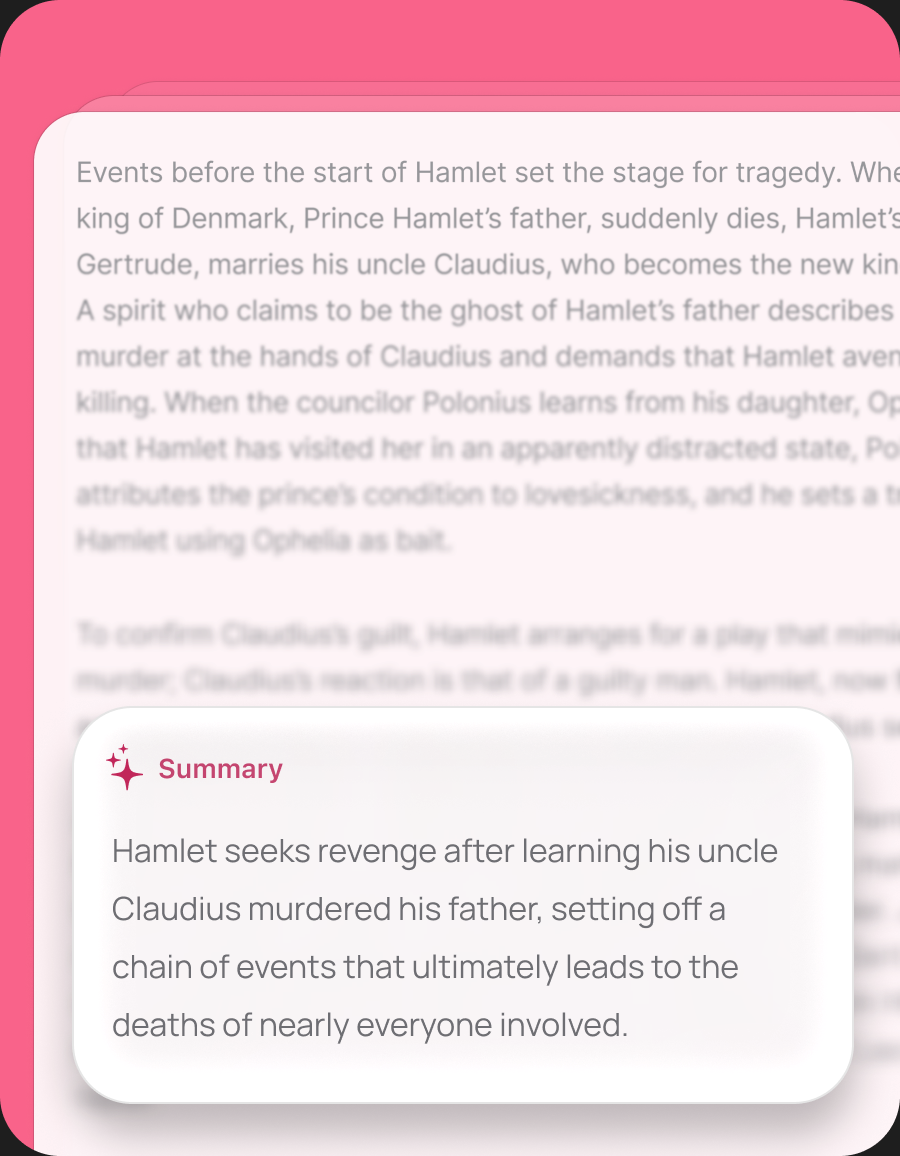
Dictate an idea. Turn a rough draft into a summary. Pull out the next steps.Your notes stay on your Mac. You choose where AI runs.
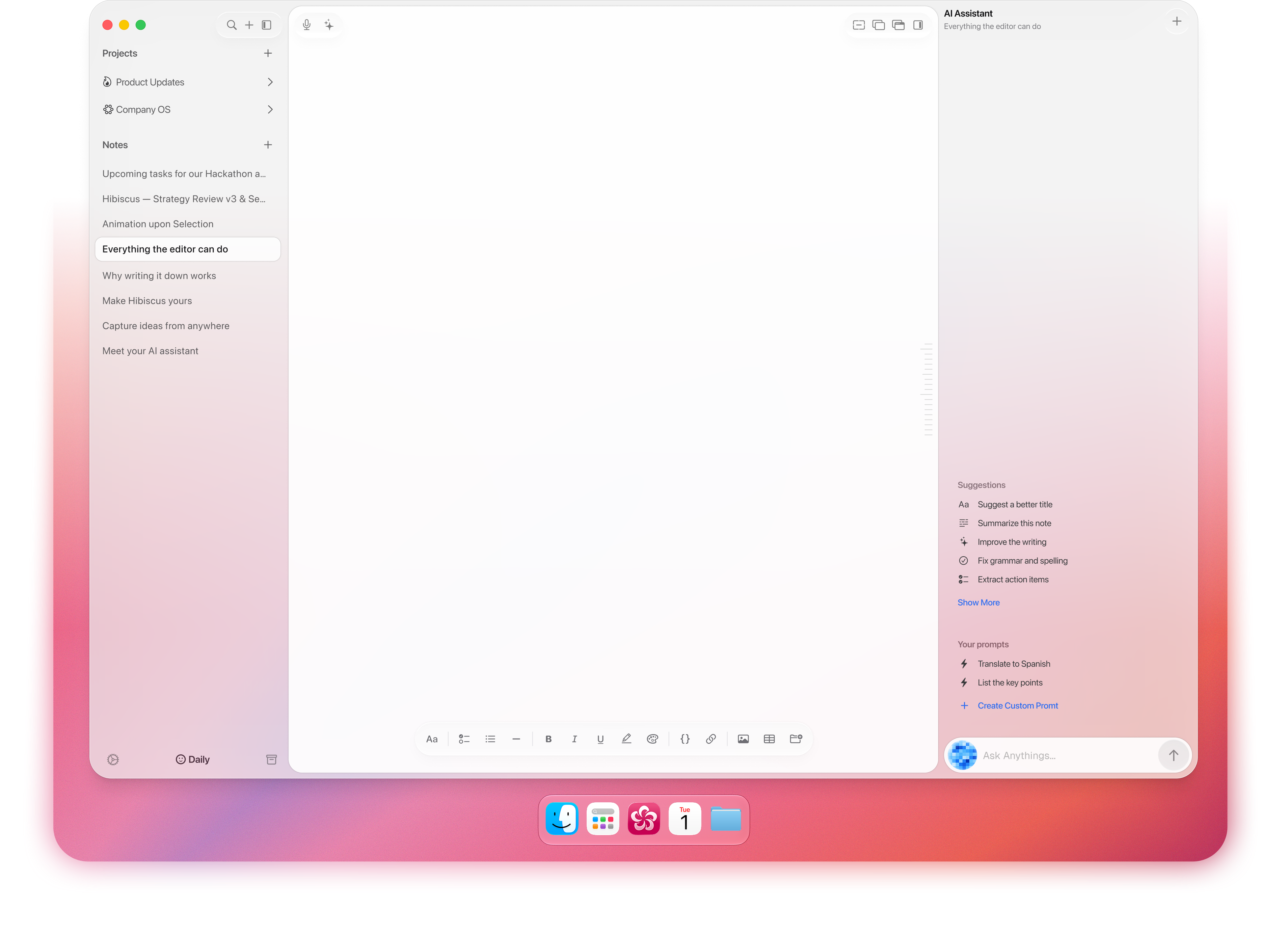
Your first note
Bring a rough draft, a call note, or an idea. Here is what to try.
Open the app and type a rough thought. Your 7-day trial needs no account or card.

Export a note as Markdown and open it in another editor during your trial.

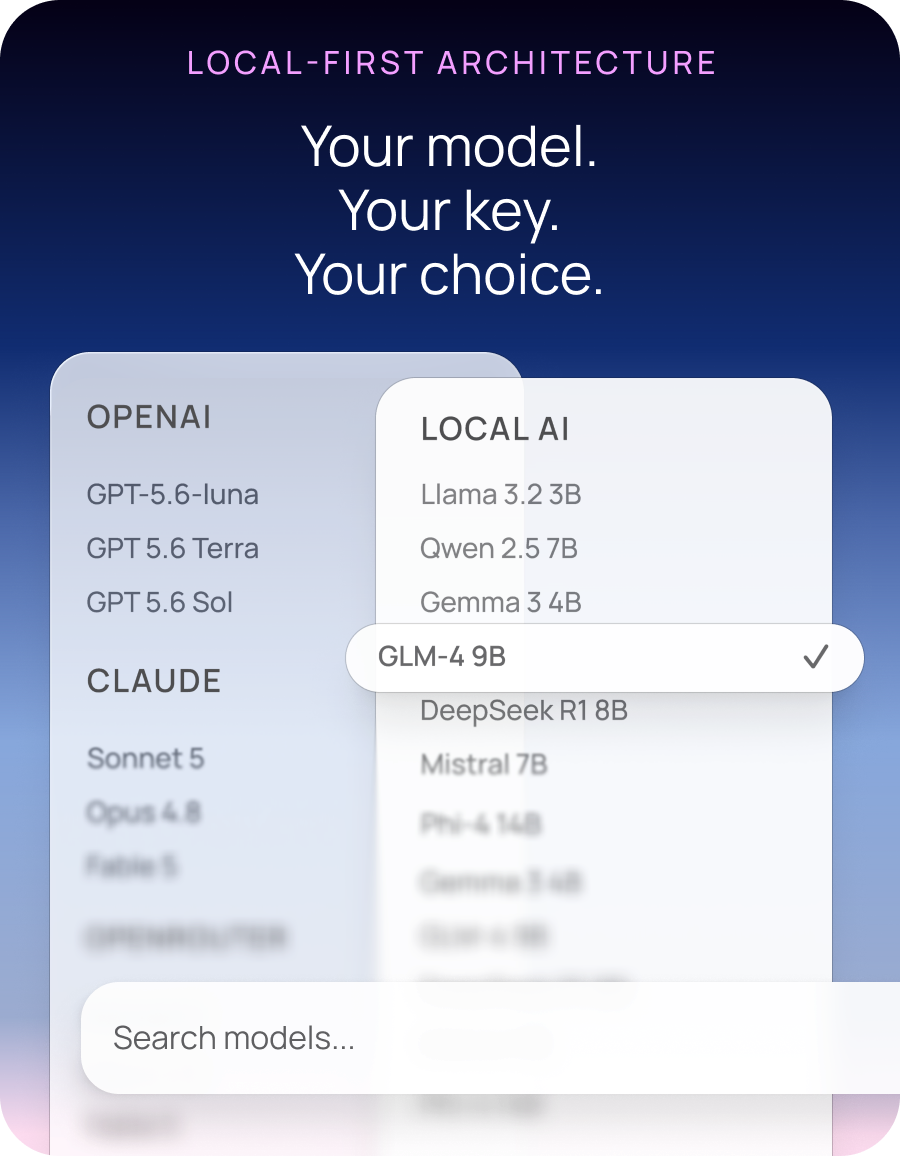
Use an available on-device model, local Ollama, or a cloud provider with your own key.

Press ⇧⌘U over another app. Type or dictate, then press Return to save.

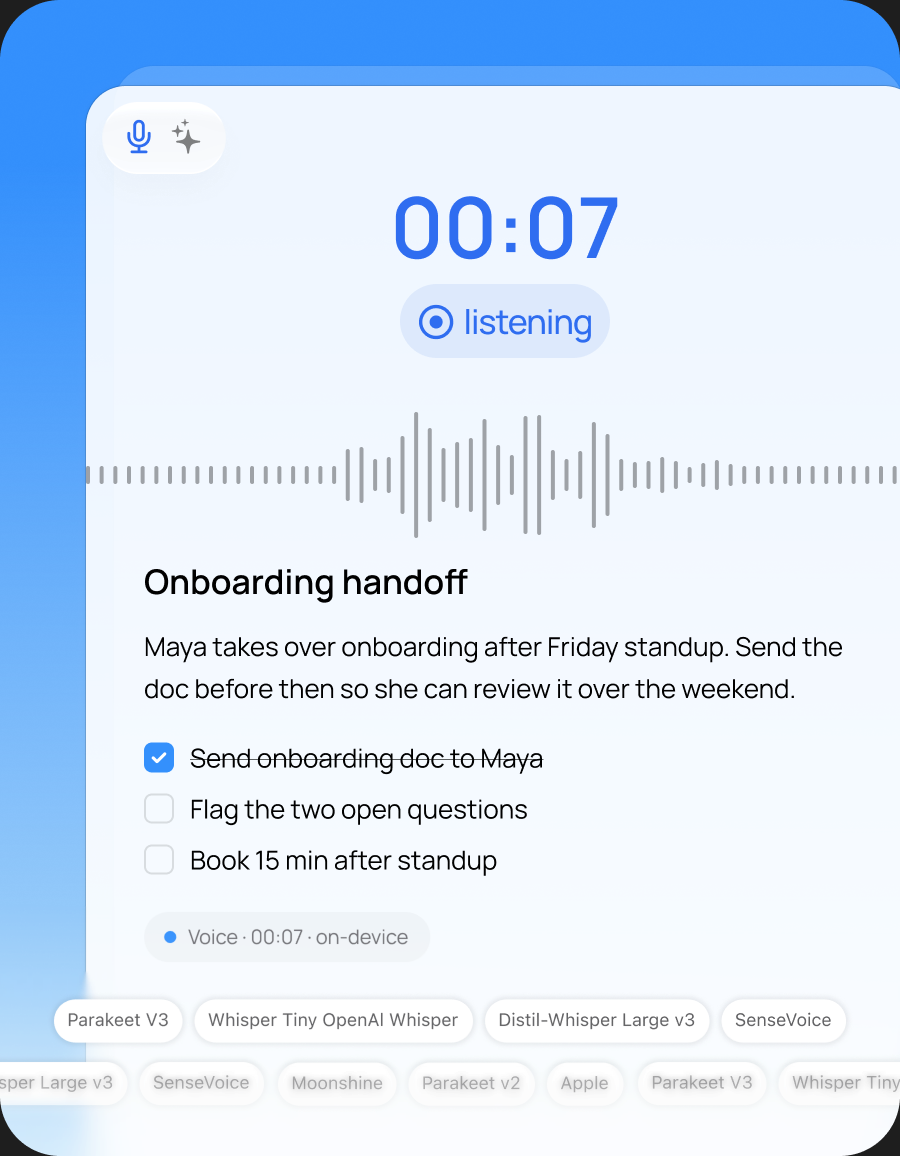
Dictate directly into a note. Choose an engine for your language and correct names as you review.

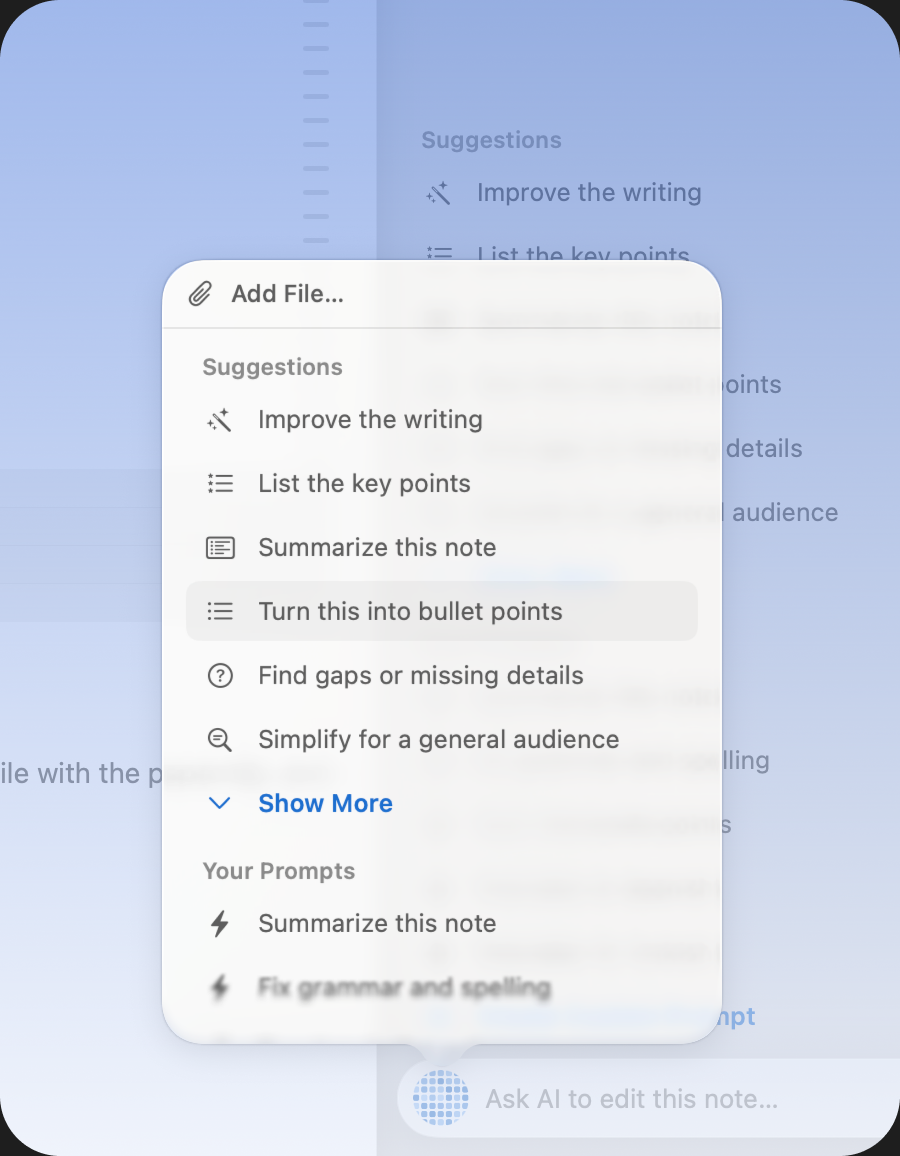
Ask AI to improve a passage, then compare and restore the earlier text in AI edit history.

Extract tasks from a note. Review them before sending them to the right project.

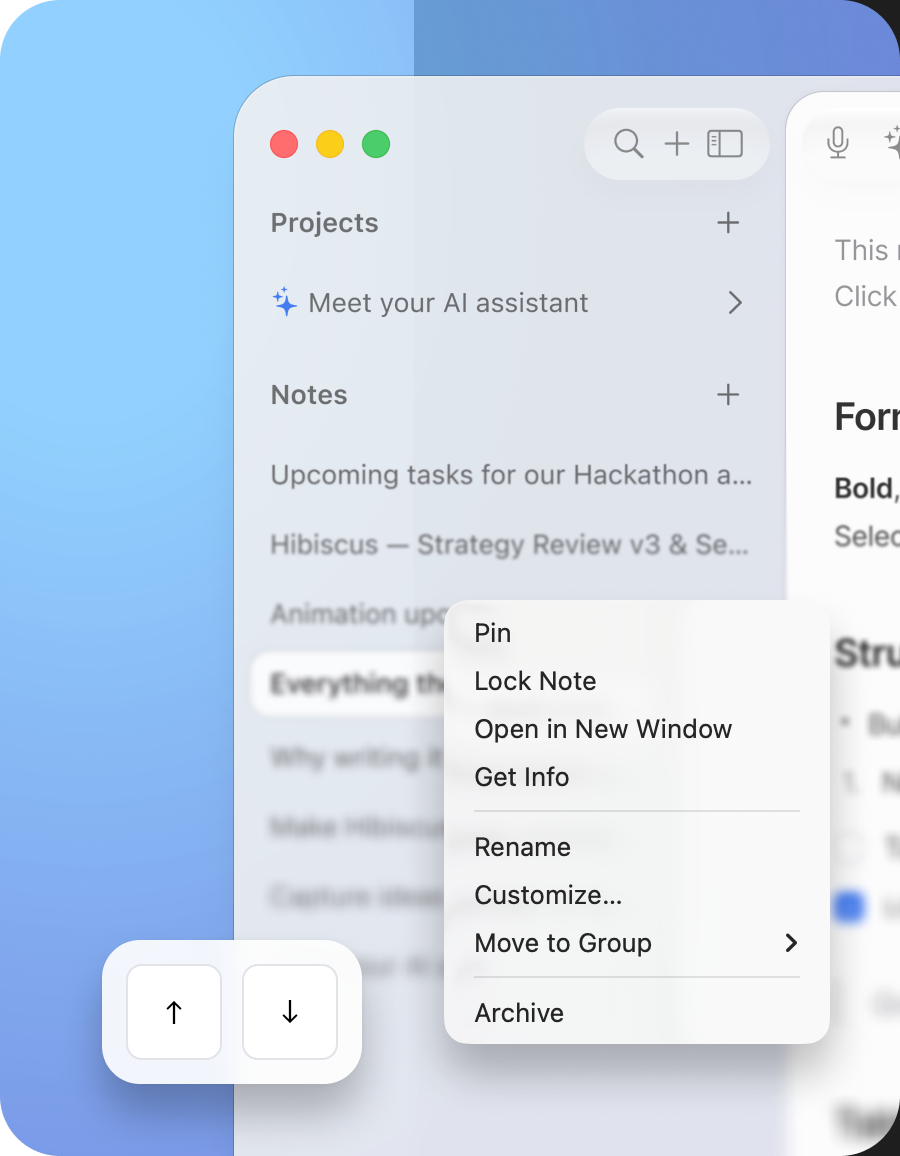
Add a tag, pin an active note, or group it in a project. Search when you need it.
Quick Capture
Press ⇧⌘U over the app you are using. Type or dictate, then press Return.Your thought is saved as an editable note. Keep working and organize it later.

Markdown-Native Editor
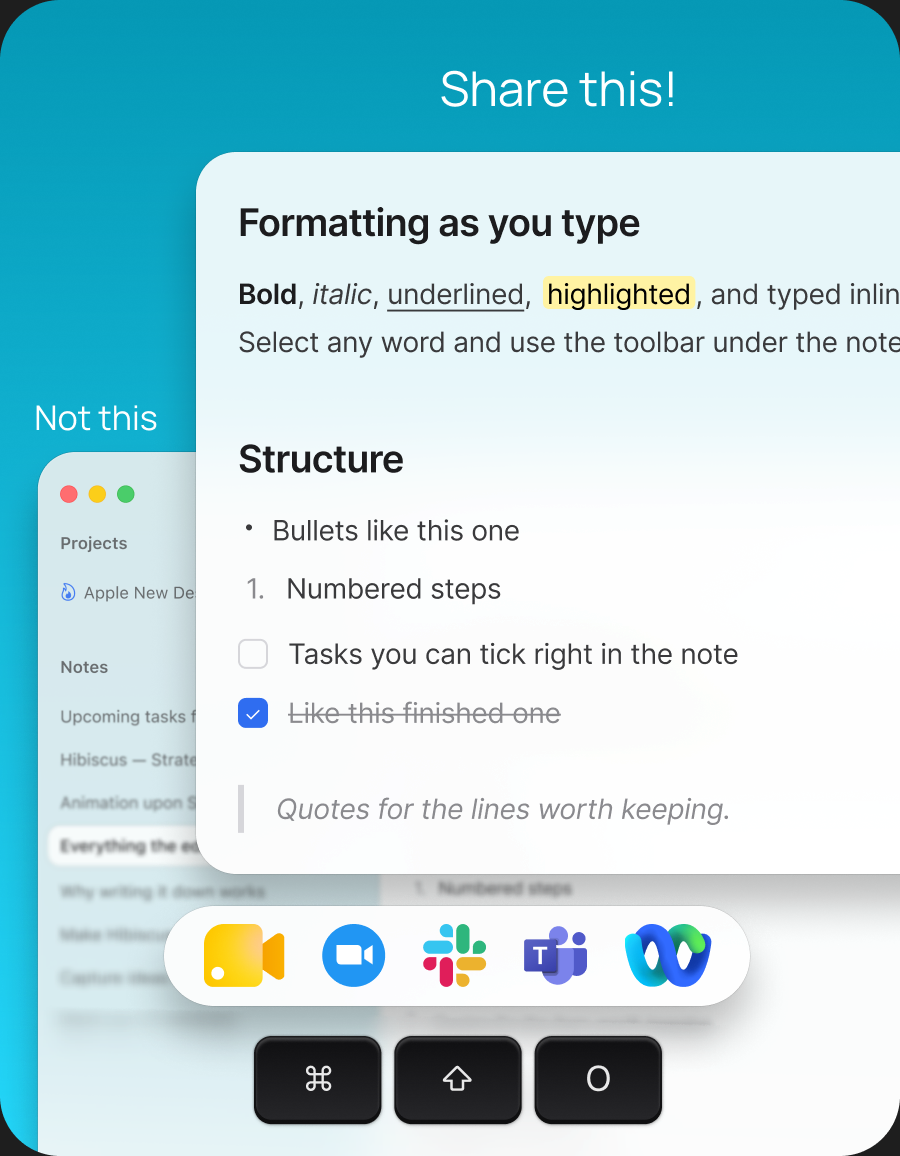
Add headings, tasks, tables, and links in a visual editor. Export a Markdown copy when you want to use your writing elsewhere. Try it with one of your own notes.


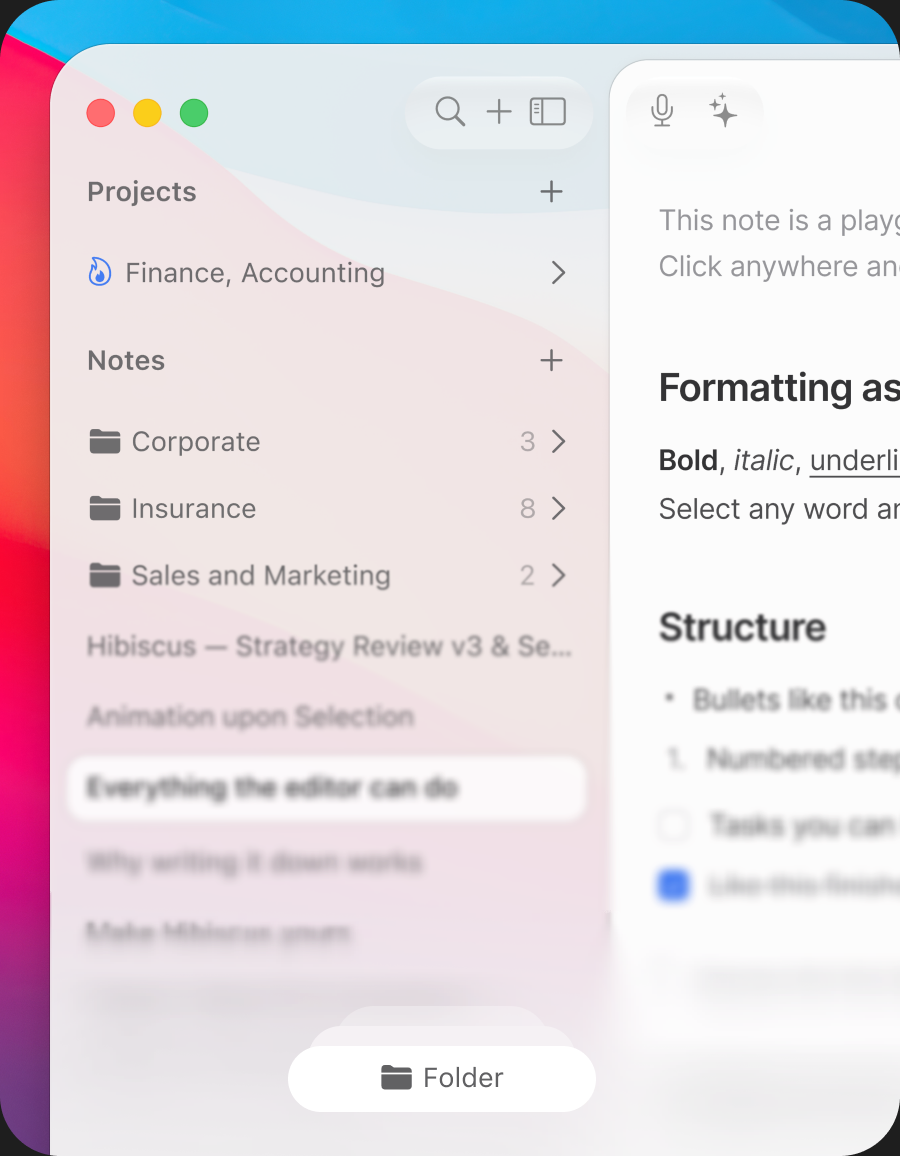
This note is a playground—everything below is live.
Click anywhere and edit it.

Pop the note out into
its own window
See the app at work
 you can use.
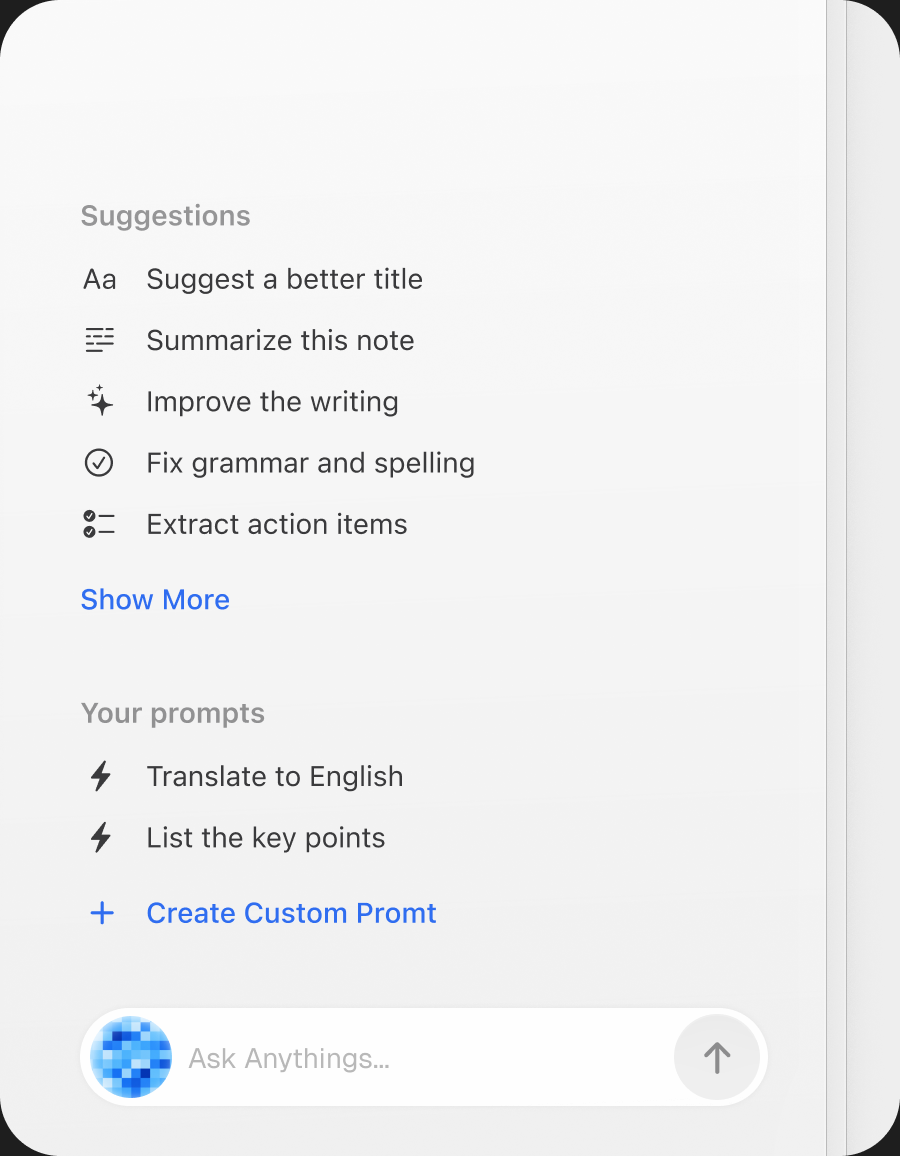
Browse the editor, dictation, summaries, and organization tools.Choose a task you already do and try that workflow in Hibiscus.
Menu Bar Actions
 from the menu bar.
Open a note or an AI action from the Hibiscus menu bar.Review the wording, then use it in the email or document you are working on.



 Wed Apr 19:41 AM

Hi Sarah,
Thanks for sending this over. I reviewed the latest version and everything looks good overall. I just have a few notes around the


What you can do today
Keep the recording, draft, or document near the note you are working on.Use the tools below to turn it into writing and actions you can review.
Speak into a note, then edit the transcript. Choose a local or connected engine for your language; local engines need their models installed first.
Import an audio file to transcribe with your selected engine. Correct names and details in the resulting note, then search the text later.
Select the paragraph you want to improve and request an AI edit. Apply the result to that passage while keeping the rest of your note.
Read the text saved before an AI edit. Compare it with the new version and restore it if the original says what you mean more clearly.
Bring in a PDF, Word document, RTF, Markdown, or text file. Ask for an outline or study guide, then check it against the source.
Ask a question across your notes and open the cited source notes to check the answer. The selected AI route determines where the request is processed.
Turn a call note or planning draft into proposed tasks. Review the list and choose which items belong in each project.
Save a sequence such as summarize, translate, then extract tasks. Reuse it on another note and review the output each time.
Keep an image or original document alongside your writing. Preview attachments when you need to check a detail.
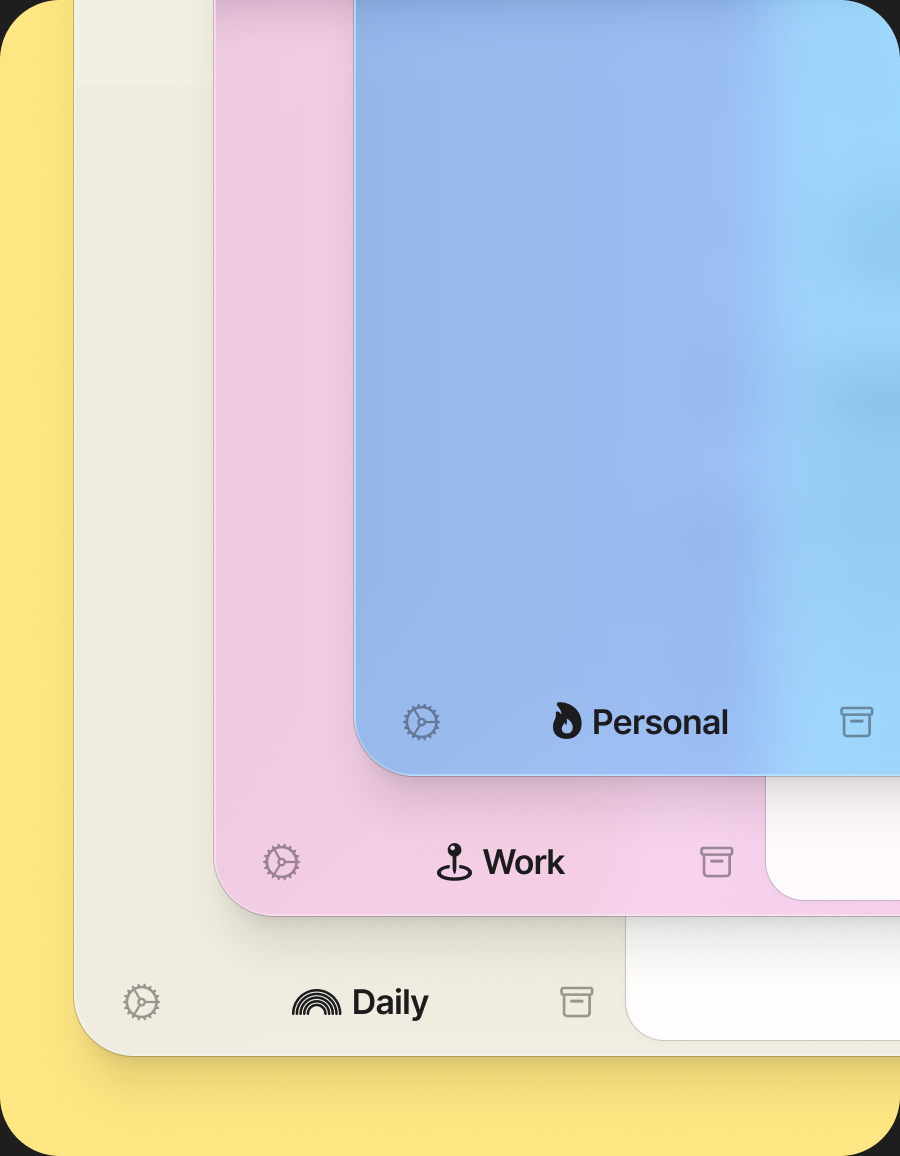
Separate work with Spaces, Projects, and Folders. Tag notes across topics, pin active work, and archive material you want to keep.
Find a phrase in a note title or body, or narrow the search with #tags. Use headings to navigate a long note.
Review aggregate writing activity stored locally on your Mac. Activity totals do not require uploading the text of your notes.
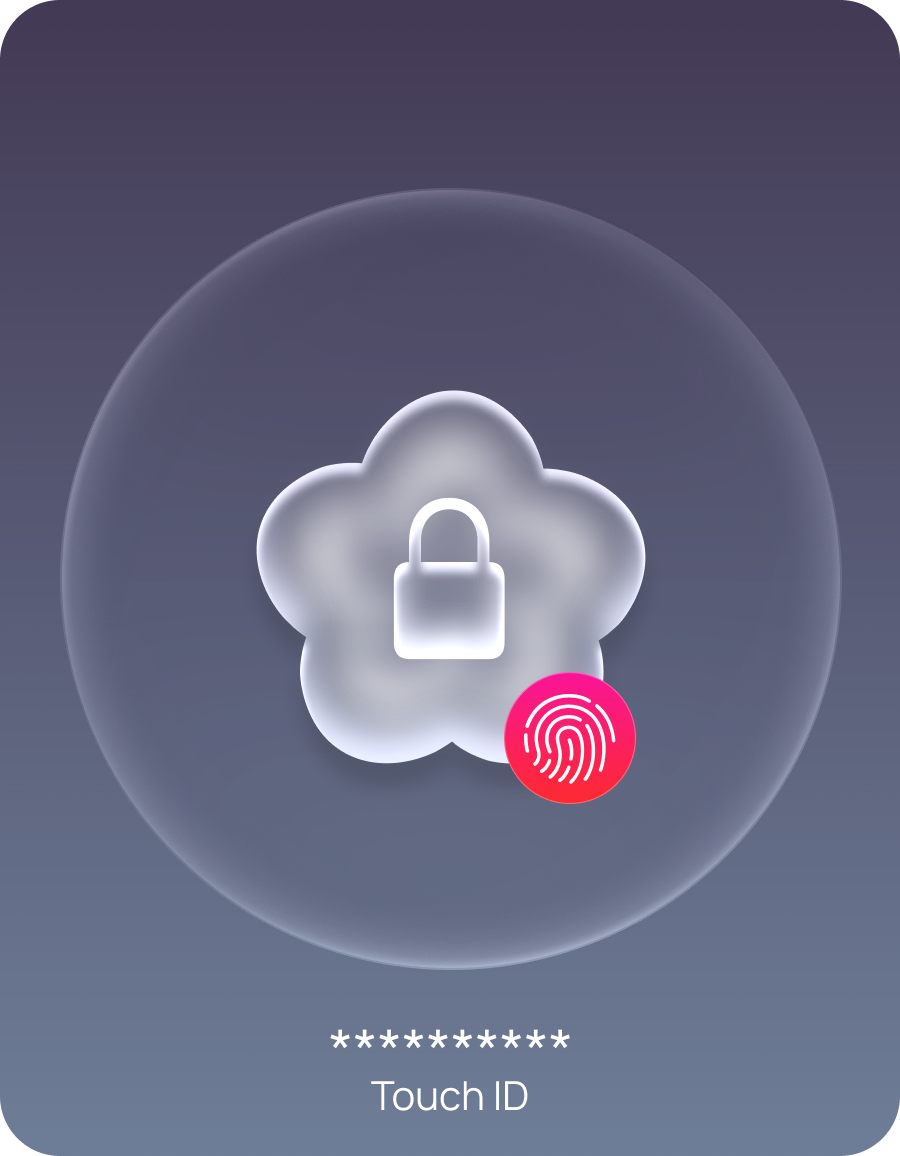
Lock a note with a password or Touch ID. While locked, its contents are unavailable to AI, copy, and export until you unlock it.
Save a full workspace backup and verify it before you need to restore. Keep a separate copy before making major changes.
Import a few notes first. Export Markdown copies to check how they look in your other tools before moving a larger collection.
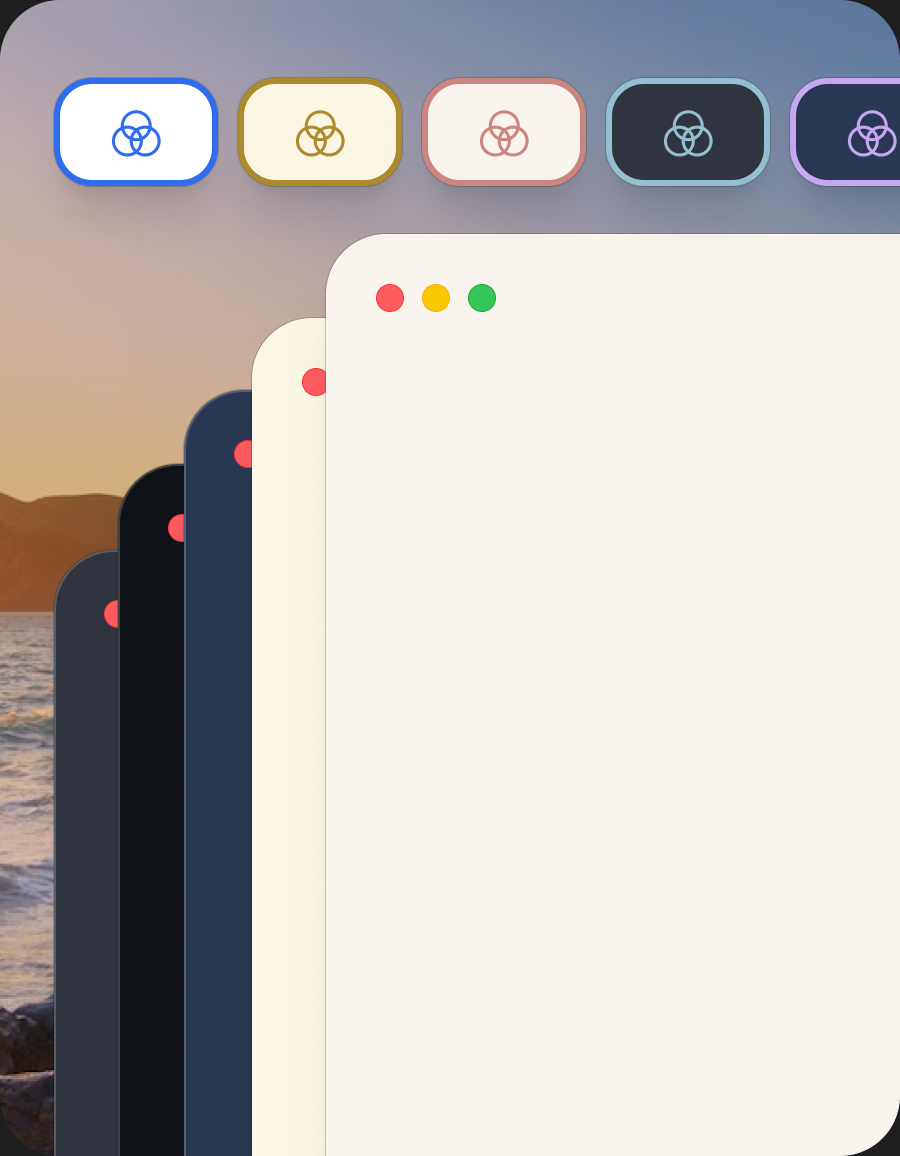
Adjust the theme and editor appearance for the way you like to read and write. Try a longer note when choosing your settings.
Work with keyboard shortcuts, separate note windows, VoiceOver, and reduced-motion settings in a native Mac app.
Check for app updates and contact [email protected] when you need help. Your plan determines the included update and support period.
Planned for a future release. The product you can download and try today is the Mac app; a mobile app is not included in this trial.
Planned for a future release. Evaluate the current Mac workflows when deciding whether Hibiscus fits your needs today.
Explore Hibiscus
See what each feature does, follow a setup guide, and check the tradeoffs before you move your writing.
Private AI, offline dictation, local models, Markdown ownership, Quick Capture, and locked notes.
View allStep-by-step workflows for private notes, local transcription, Ollama, and Markdown on Mac.
View allCompare where AI runs, what setup it needs, and how you can take a copy of your notes.
View allCompare the foundations
Compare where your notes live, how you can use AI, and what needs setup. These are workflow differences, not an overall ranking.
Swipe to compare
| Capability |  Hibiscus Hibiscus | Apple Notes | Notion | Obsidian |
|---|---|---|---|---|
| Local storage by default | Local library | On My Mac | Cloud workspace | Local vault |
| Markdown is the source | Markdown content | Export option | Export option | Authoritative |
| No account for core notes | No account | On My Mac | Account required | No sign-up |
| Read and edit notes offline | License checks online | On My Mac | Selected pages | Local vault |
| Voice transcription | Local engine setup | Supported Macs | Cloud AI | Via plugins |
| On-device AI route | Compatible Mac + setup | Apple Intelligence | Cloud models | Via plugins |
| Ollama support | Built in | Not built in | Not built in | Via plugins |
| Bring your own AI key | Built in | Not offered | Not offered | Via plugins |
Mac workflows, reviewed October 2026. Local AI and speech need compatible hardware and setup; Hibiscus activation and periodic license checks need internet. Apple Intelligence may use cloud processing for some tasks. Plugin capabilities vary. Sources: Apple Notes, Notion, Obsidian, Apple export, Apple transcription, Apple AI, Notion export, Notion AI, Notion transcription, Obsidian AI plugins, Obsidian transcription plugins.
Pricing
Use the full app free for 7 days. Dictate an idea, improve a draft, and export a note. If Hibiscus fits your work, choose a one-time license below.
One-time launch offer
Pay $19 once, regularly $39. Use the purchased version for as long as you like, with 12 months of product updates and customer support included.
Try Hibiscus Free for 7 DaysThe full app, with a year of updates
Buy once. Stay up to date for life.
Pay $99 once for the same full app, with future Hibiscus product updates and major version upgrades included. Choose this if you want ongoing updates without another upgrade purchase.
Pay once · Receive updates for life · Never pay an upgrade fee
Everything in the Founder License, plus
Prices are in USD; applicable taxes are shown at checkout. Both licenses support up to two Macs for one person. Cloud AI usage is billed separately by your provider. Local models need compatible hardware and setup. Trial activation and license checks require internet. See Terms for license coverage. Read the terms.

Dictate an idea, shape a draft,
and export a copy. Free for 7 days.
No card or account required. No automatic charge.
Requires macOS 14 Sonoma or later. · Latest version: v0.8.37